Connect Spaceship
Connect Spaceship to Domain Pilot: create an API key with custom access in Spaceship's API Manager, then paste the key and secret in. Includes common fixes.
This guide walks you through connecting your Spaceship account to Domain Pilot so you can manage all your Spaceship domains from a single dashboard.
Step 1: Open the API Manager
-
Log in to your Spaceship account
-
Click Launchpad, type api, and select API Manager

Step 2: Create an API key
-
Click New API key

-
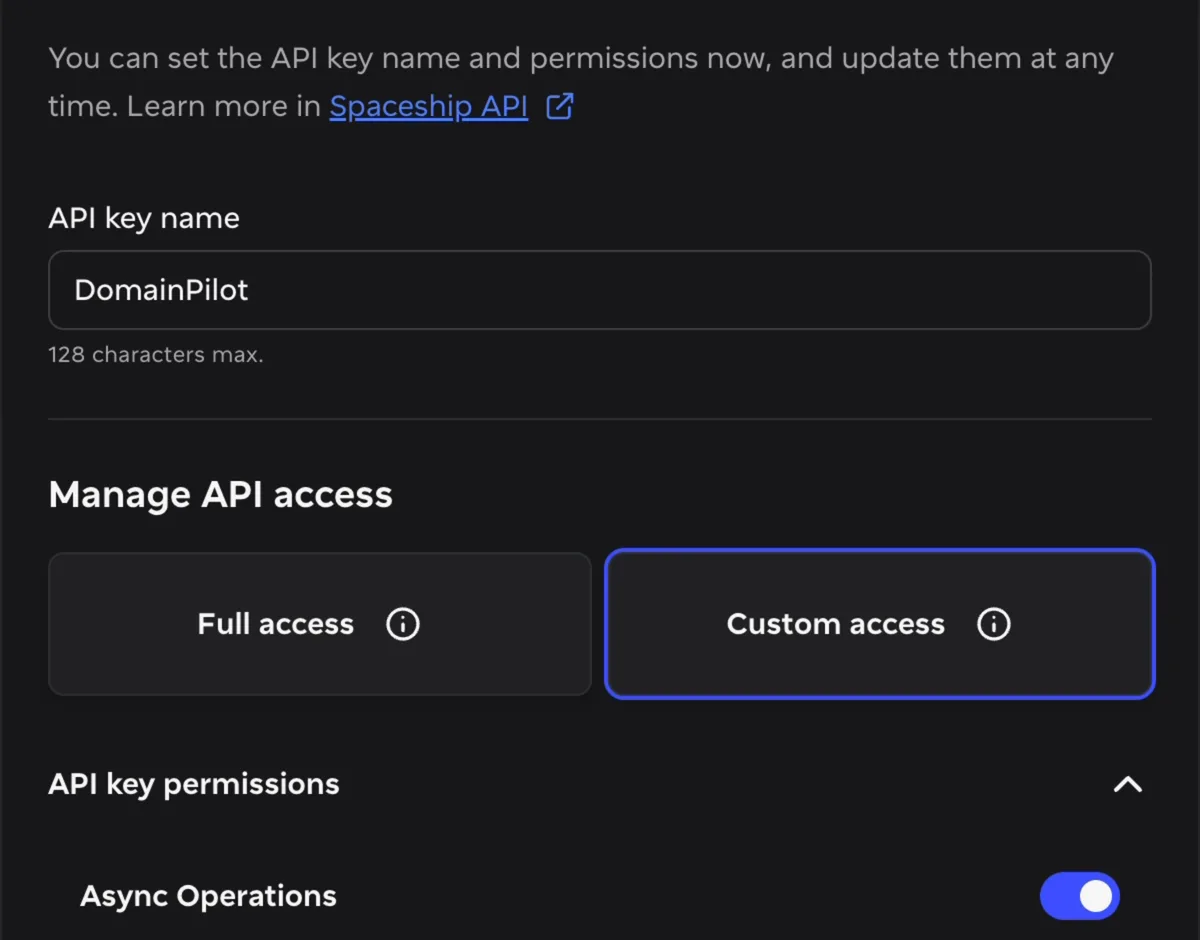
Enter a name for the key, such as "DomainPilot"
-
Under Manage API access, select Custom access
Step 3: Choose the permissions
Domain Pilot only needs a handful of permissions. Under API key permissions, set them like this:
- Async Operations: leave on
- Contacts: turn off
- DNS Records: leave on. Domain Pilot uses it to show your DNS records and let you edit them, so we recommend keeping it.
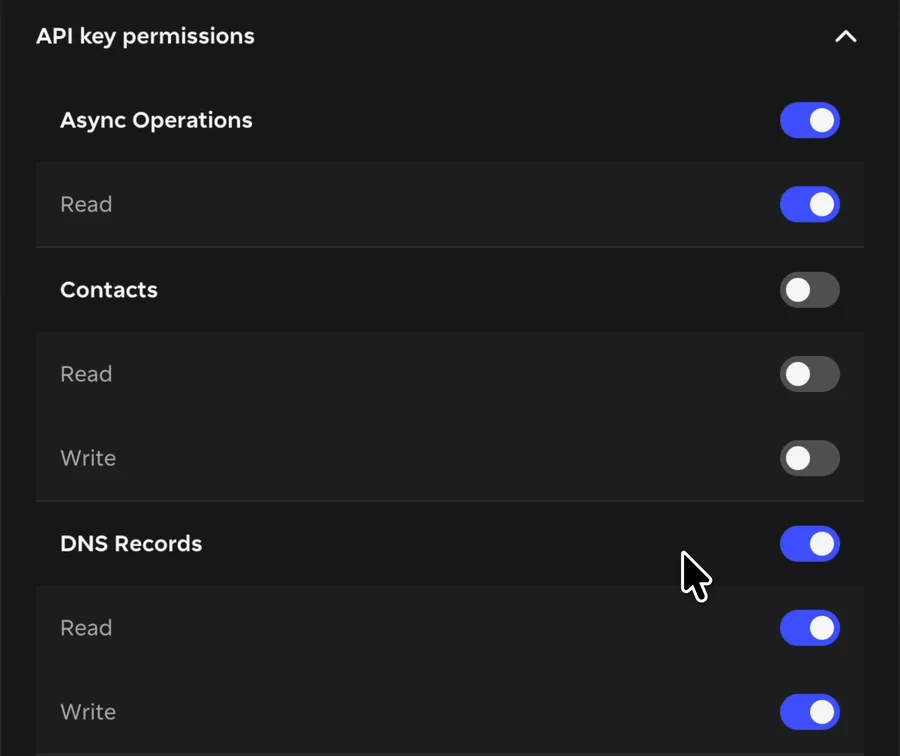
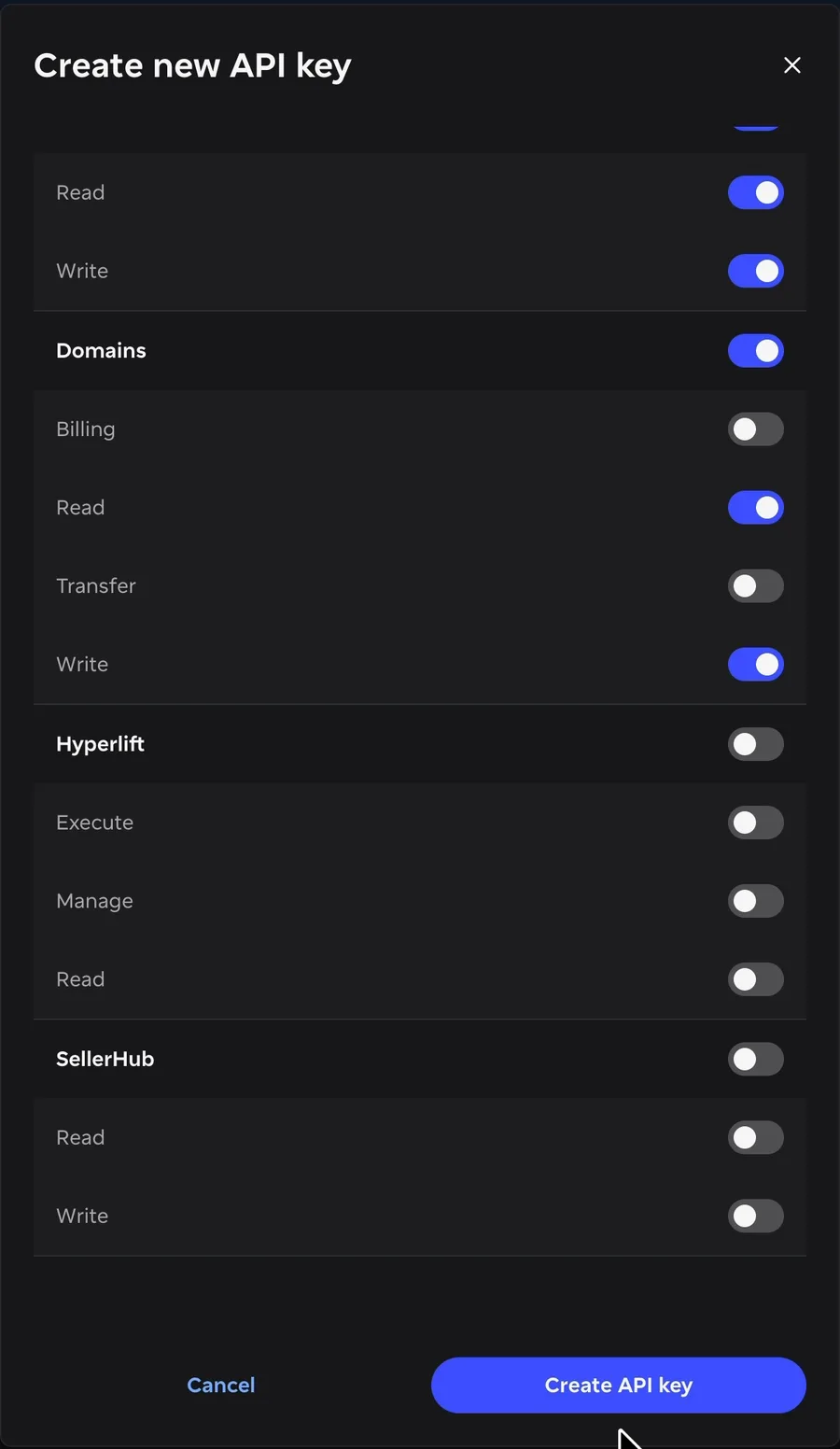
- Domains: turn off Billing and Transfer, and leave Read and Write on
- Hyperlift: turn off
- SellerHub: turn off
Then click Create API key.
Step 4: Copy the API key and secret
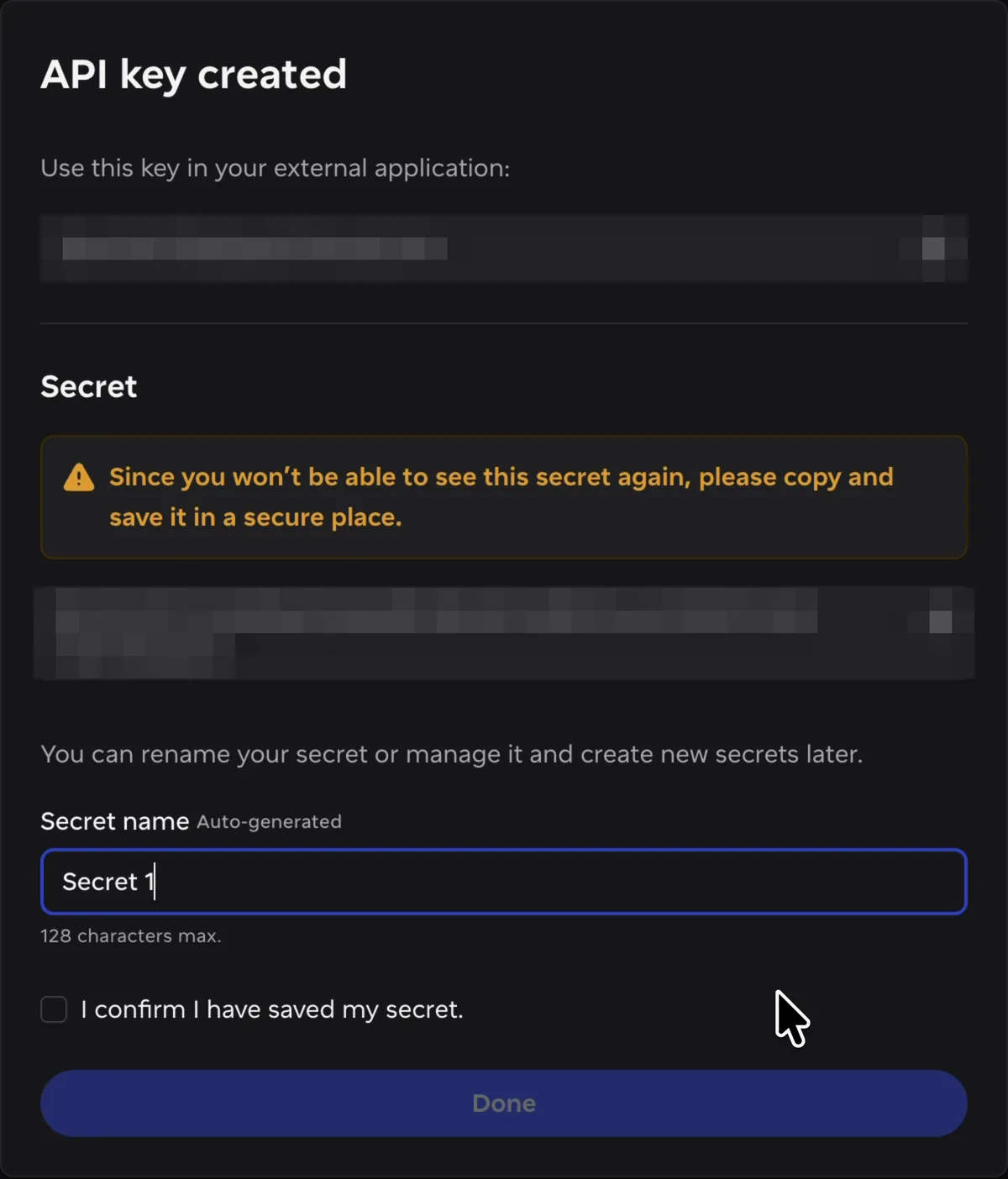
Spaceship shows two values: the API key and the Secret. Domain Pilot needs both.
Important: Spaceship shows the secret only once. Keep this window open until you've pasted both values into Domain Pilot.You can also rename the secret here, for example to "domainpilot", to keep things organised.
Step 5: Connect in Domain Pilot
- Log in to Domain Pilot in another tab
- Click Registrars in the sidebar, then click Add registrar
- Select Spaceship
- Copy the API key from Spaceship and paste it into API key
- Copy the secret from Spaceship and paste it into API secret
- Click Test connection

Step 6: Finish in Spaceship
Once both values are in Domain Pilot, go back to Spaceship, tick I confirm I have saved my secret, and click Done.
Verifying the connection
Domain Pilot imports your domains as soon as the connection test succeeds and shows how many it found. Click View my domains to see them on the Domains page.

Troubleshooting
"Invalid Spaceship API credentials" error
- Check that you pasted the API key into API key and the secret into API secret
- Make sure the key hasn't been deleted in the API Manager
- If you no longer have the secret, add a new secret to the key in the API Manager, or create a new key. Spaceship can't show a secret again.
A "403" error, or domains or DNS records missing
- The key is missing a permission. Open the key in the API Manager and check that Domains (Read and Write) and DNS Records (Read and Write) are on
- Update the key's permissions, then click Test connection again in Domain Pilot