Connect Vercel
Step-by-step guide to connect your Vercel account to Domain Pilot
This guide walks you through connecting your Vercel account to Domain Pilot so you can manage all your Vercel domains from a single dashboard.
Before You Begin
- A Vercel account with at least one domain
- Access to your Vercel account settings
Step 1: Open the Tokens Page
The tokens page is a little hidden in Vercel. Either:
- Type tokens in the search box in your Vercel dashboard and open the result, or
- Click your username, click the Settings gear icon, and select Tokens

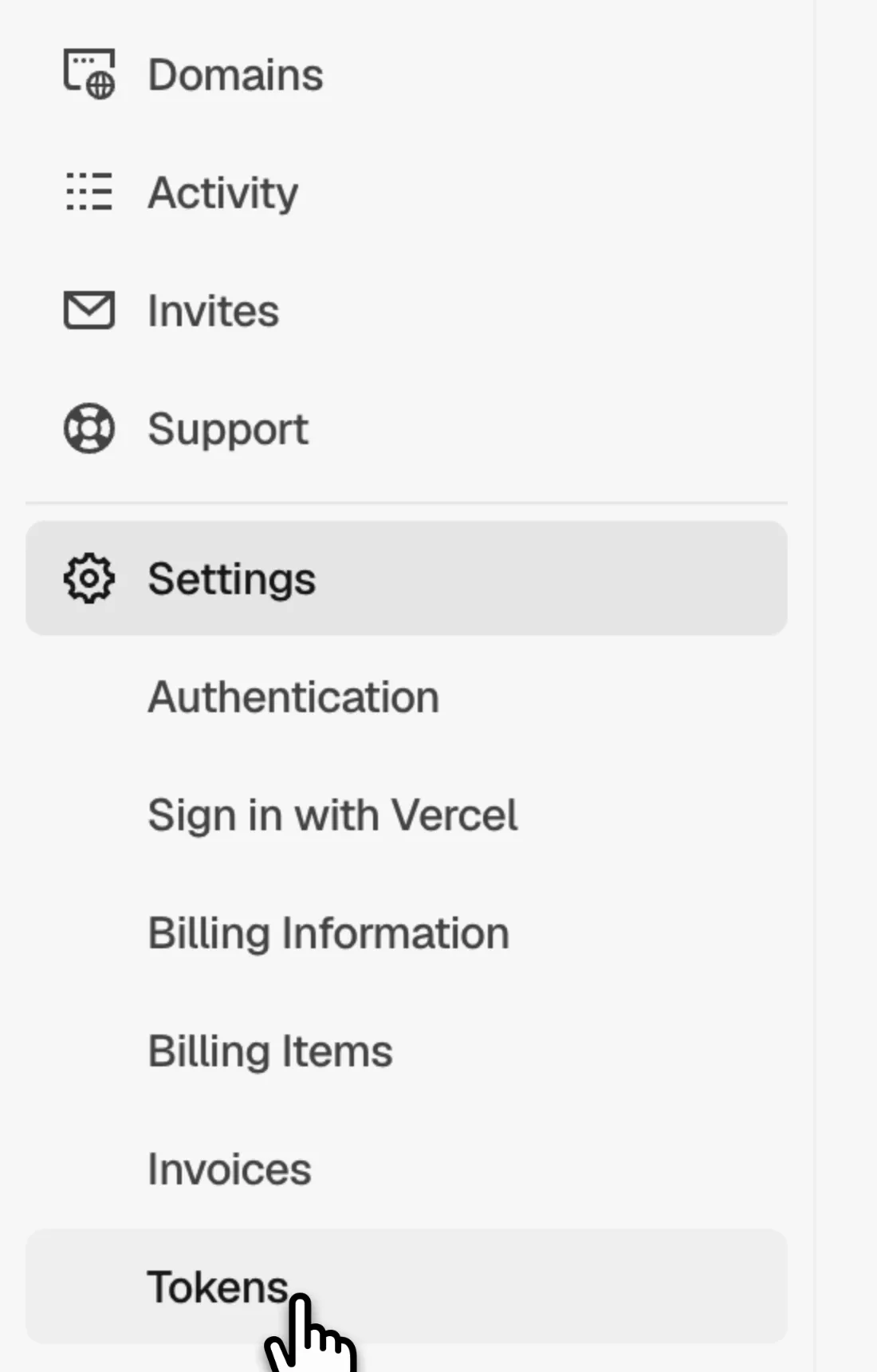
You can also go straight to vercel.com/account/tokens.
Step 2: Create an API Token
-
Enter a token name (e.g., "Domain Pilot")
-
Under Scope, select your team, then All Projects

-
Set Expiration to No Expiration, so syncing doesn't stop when the token expires

-
Click Create
Step 3: Copy Your Token
Copy the token and save it securely. It starts with vcp_.
Important: The token is only shown once. Copy and save it before closing the dialog.

Step 4: Connect in Domain Pilot
- Log in to Domain Pilot
- Click Registrars in the sidebar, then click Add Registrar
- Select Vercel
- Paste your token into API Token
- Leave Team ID blank
- Click Test Connection
Verifying the Connection
Domain Pilot imports your domains as soon as the connection test succeeds and shows how many it found. Click View My Domains to see them on the Domains page.
Troubleshooting
"Invalid Token" Error
- Ensure the token was copied correctly without extra spaces
- Check that the token has not been deleted or expired in Vercel settings
- Try creating a new token if the issue persists
Team Domains Not Appearing
- Check that the token's Scope is set to the team that owns the domains
- If you created the token with the Full Account scope, enter that team's Team ID in Domain Pilot. You'll find it in Vercel under Team Settings → General → Team ID
"Forbidden" Error
- Verify the token's scope includes the team that owns your domains