Connect GoDaddy
Step-by-step guide to connect your GoDaddy account to Domain Pilot
This guide walks you through connecting your GoDaddy account to Domain Pilot so you can manage all your GoDaddy domains from a single dashboard.
GoDaddy offers two kinds of API credentials, and Domain Pilot supports both:
- API token (recommended): GoDaddy's current method. A single token, covered in Steps 1–3 below.
- Classic API key and secret: GoDaddy's legacy method. See Using a Classic API Key and Secret.
Step 1: Open the GoDaddy Developer Portal
You can't create API credentials from GoDaddy's regular account dashboard. Instead, go to developer.godaddy.com, sign in with your GoDaddy account and open Personal Access Tokens.

Step 2: Generate an API Token
-
Click Generate Token

-
Enter a name, such as "Domain Pilot"
-
Set Expiration to 1 year. GoDaddy tokens can't be set to never expire
-
Under Scopes, tick Domains & DNS

-
Click Generate Token
-
Click the copy icon to copy the token, then click Done

Note: Because GoDaddy tokens expire after a year, you'll need to generate a new token each year and update it in Domain Pilot.
Step 3: Connect in Domain Pilot
-
Log in to Domain Pilot
-
Click Registrars in the sidebar, then click Add Registrar
-
Select GoDaddy

-
Paste your token into API Key
-
Click Test Connection
Verifying the Connection
Domain Pilot imports your domains as soon as the connection test succeeds and shows how many it found. Click View My Domains to see them on the Domains page.
Using a Classic API Key and Secret
If you already have a classic GoDaddy API key and secret, or prefer that method, you can use it instead of a token.
-
On developer.godaddy.com, go to the classic API Keys section

-
Click Create New API Key

-
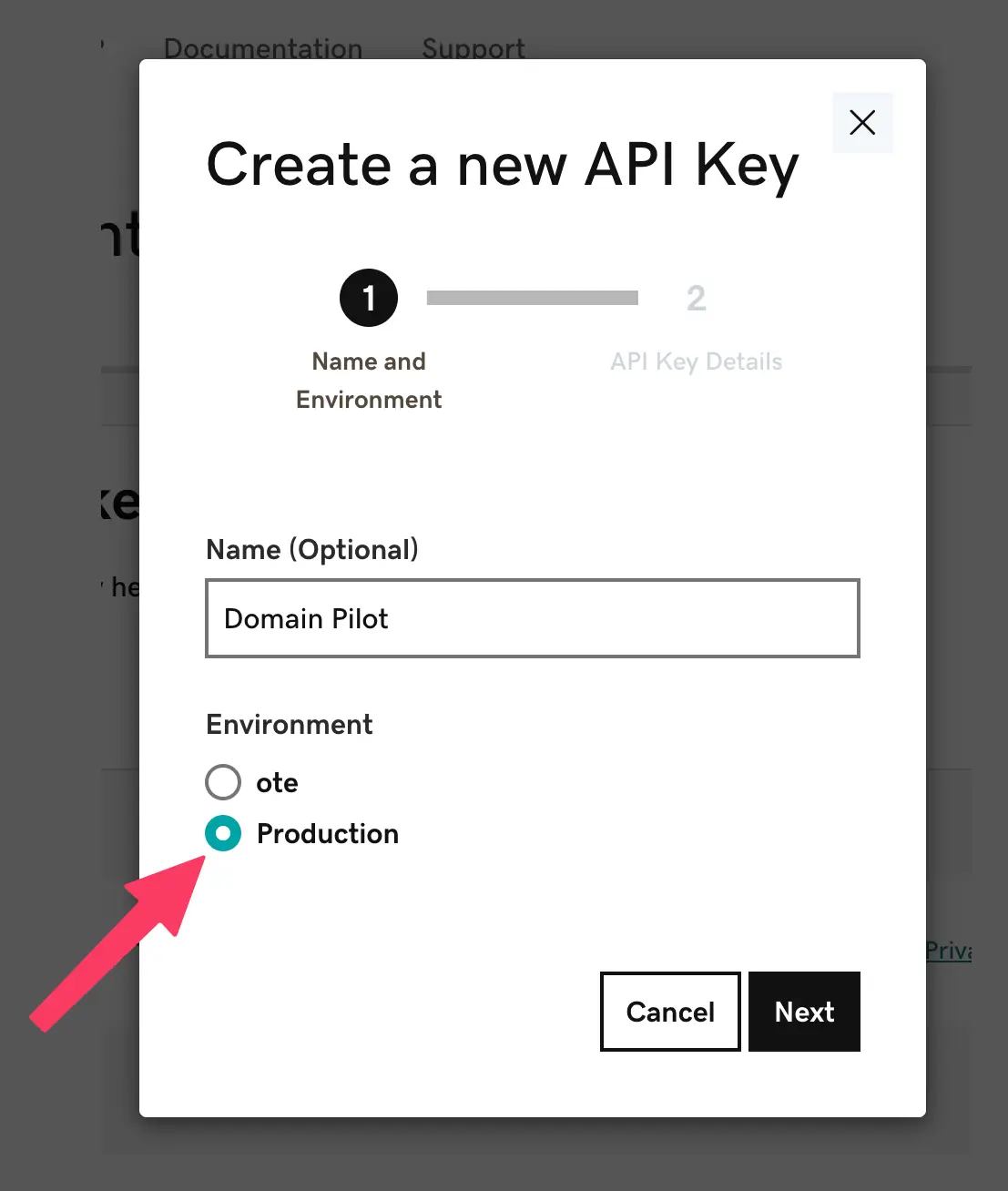
Enter a name for your key (e.g., "Domain Pilot") and select Production as the environment, then click Next
-
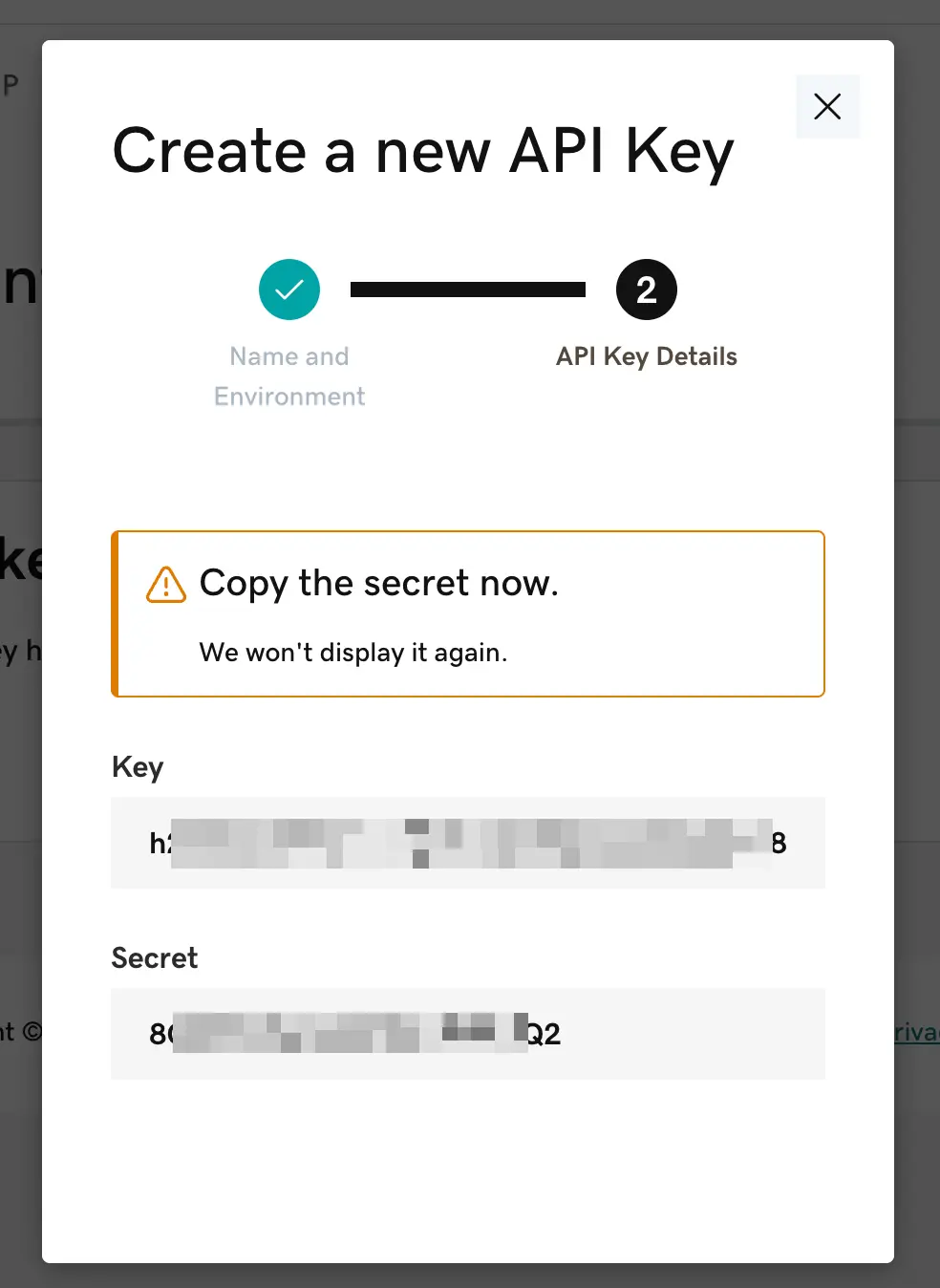
Copy the Key and the Secret
-
In Domain Pilot, select GoDaddy, then click the link under the API Key field for classic API keys to show the secret field
-
Paste the key into Classic API Key and the secret into API Secret

-
Click Test Connection
Troubleshooting
"Invalid API Credentials" Error
- Ensure you copied the full token, or the full key and secret, without extra spaces
- For classic keys, check that you're using the Production key, not a test/OTE key
- If you're using a token, check that it hasn't passed its one-year expiry
- Try generating new credentials if the issue persists
Domains Not Appearing
- For tokens, check that the Domains & DNS scope was ticked
- Ensure the credentials belong to the account holding the domains
- If you have multiple GoDaddy accounts, verify you're using the correct one